Syncing Calendars
Did you know you can have every practice, game and team event from Crossbar show up automatically in your phone or family calendar? Once set up, any schedule changes update on their own, so you won't need to check the site for updates.
This will persists across seasons because it's tied to your player's profile. As long as the team uses Crossbar, this only needs to be done once.
Note - These screenshots are from a phone, but the process on pc is the same.
1. Log in
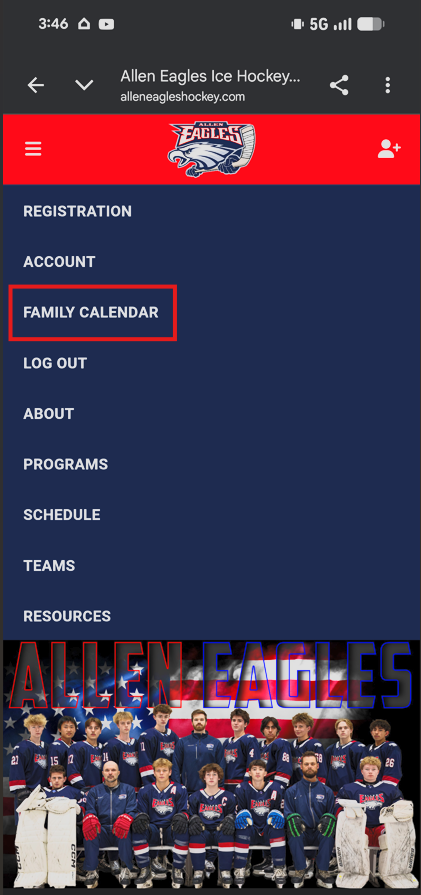
Go to alleneagleshockey.com and sign in with the email you used to register your player and open your family calendar
2. Get your sync link
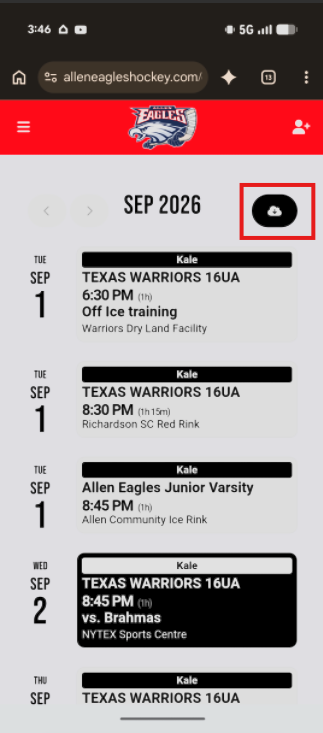
Click on the Calendar Feed icon (cloud with a down arrow).
3. Get your calendar sync link
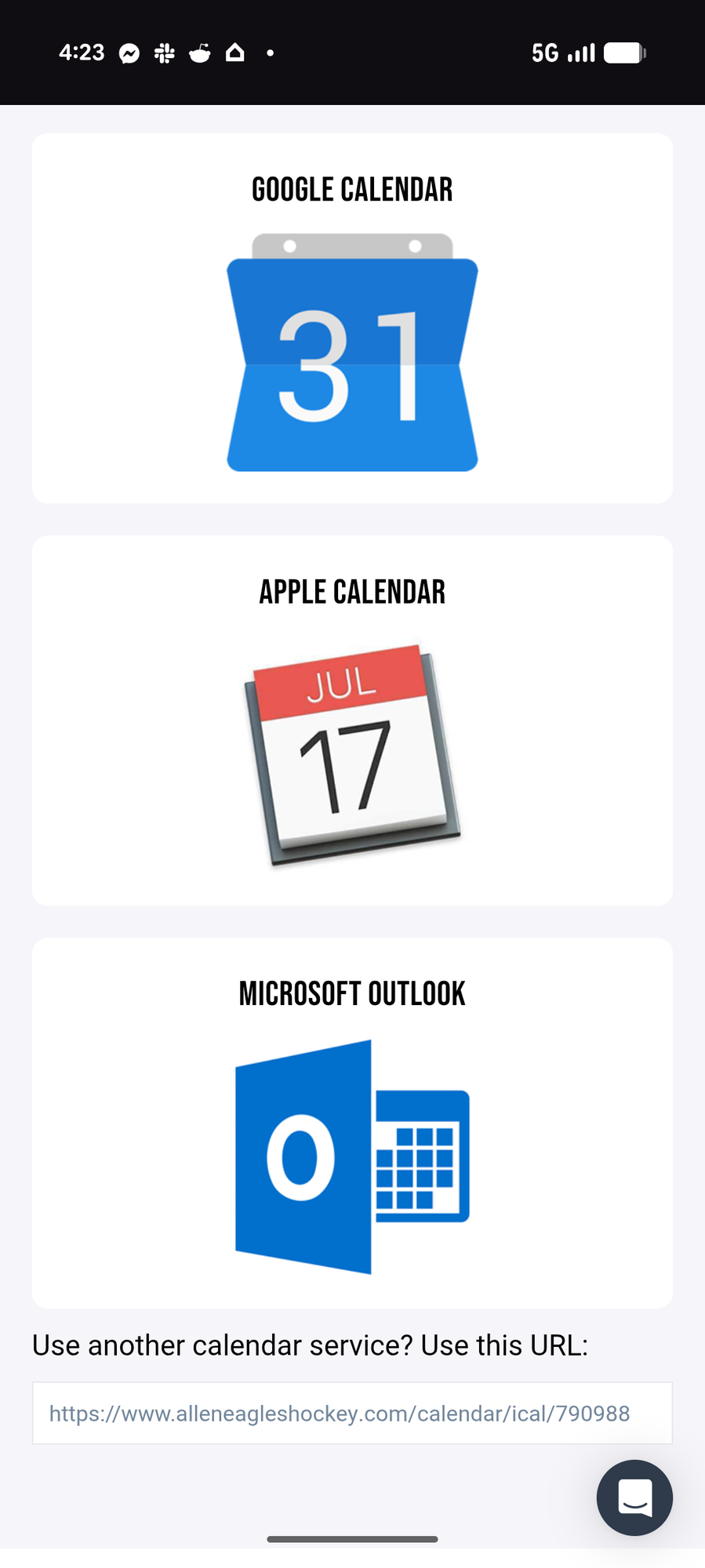
Crossbar provides different links depending on your calendar. Clicking on one of the main links (Google Calendar, Apple Calendar, or Outlook) will walk you through the syncing process.
For all other calendars/devices, use the "use another calendar service" link at the bottom.